Robots
XGO SERIES · USER MANUAL

XGO-lite3

Desktop-grade Quadruped Robot

Get to know your robot, from first start to development.

Original foldout · English & Chinese · 54.4 MB

XGO-lite3

User Guide

1

Product Introduction

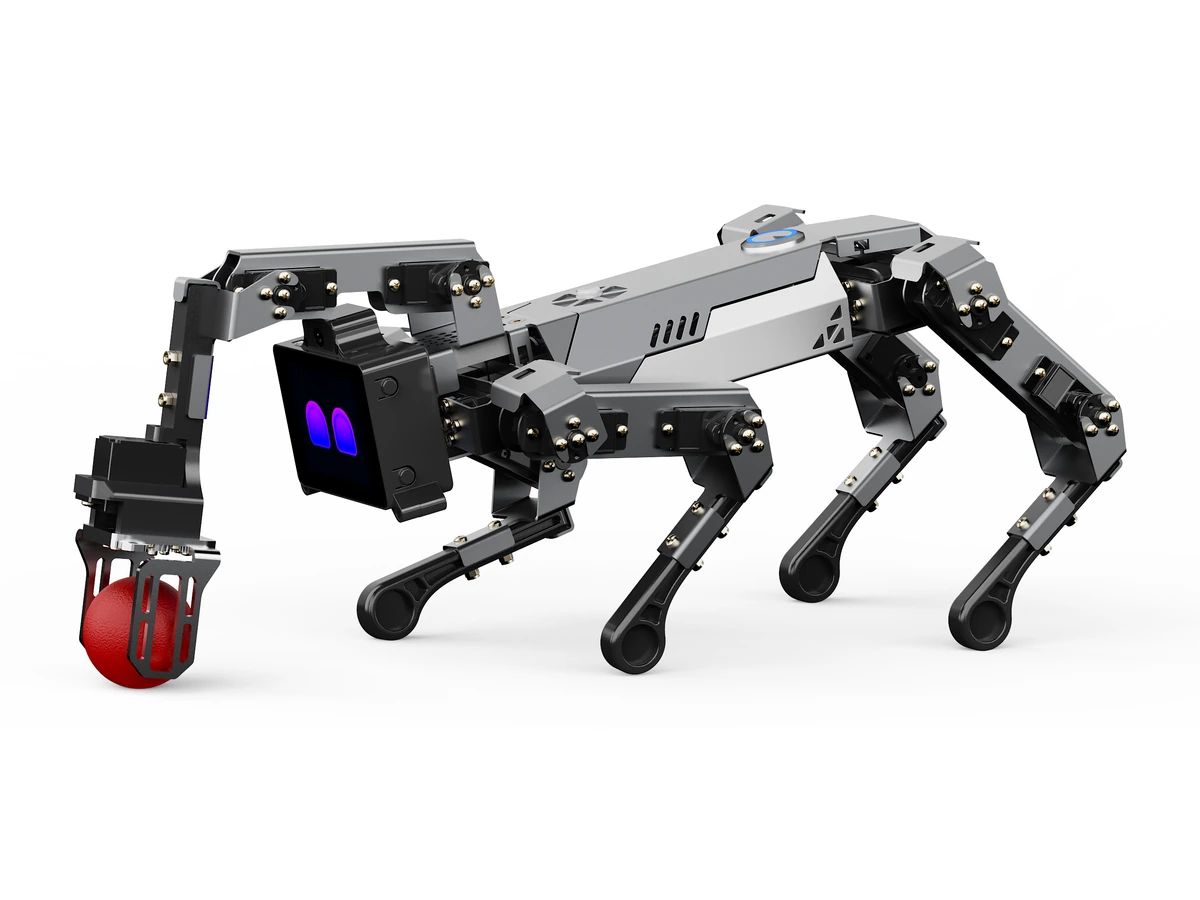
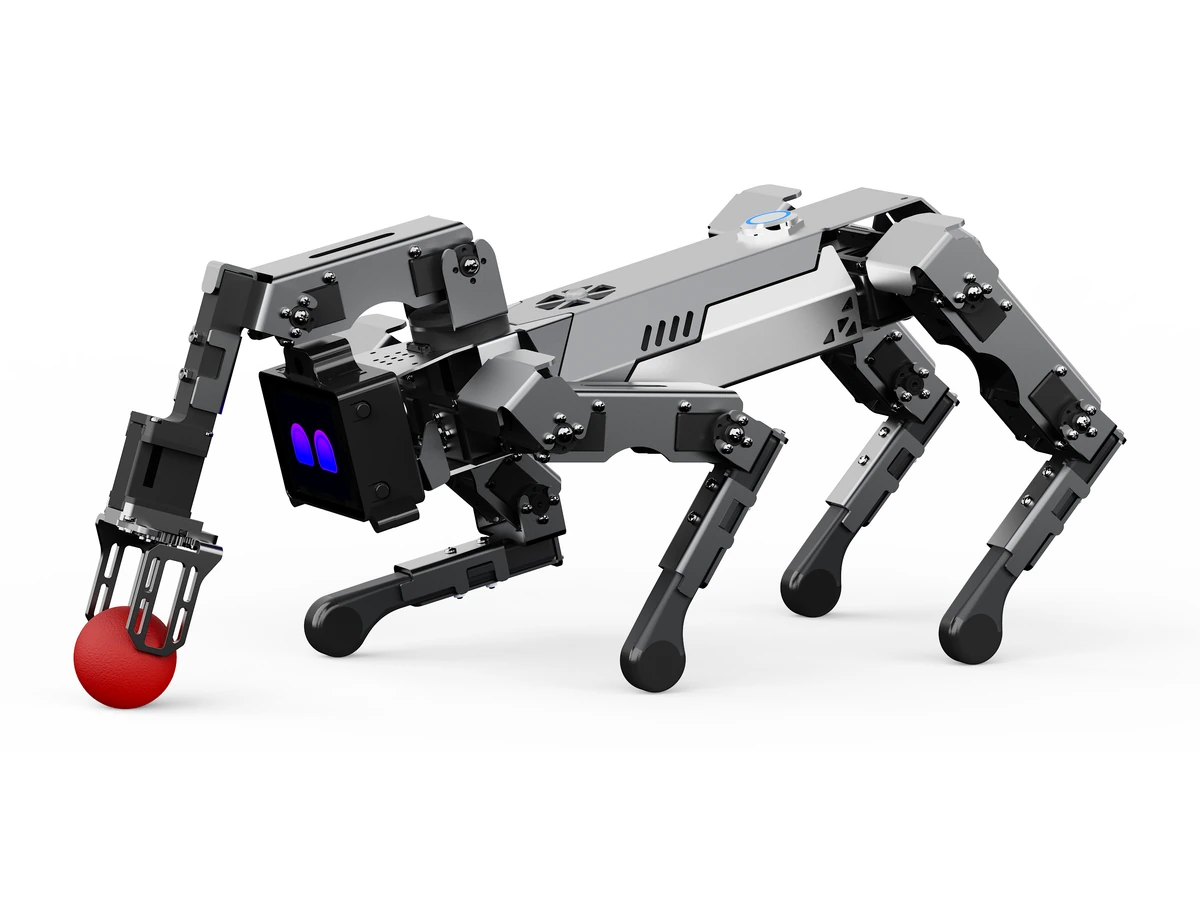
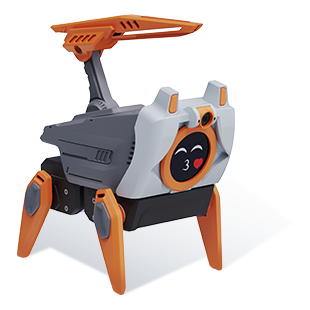
XGO-lite3 is a desktop AI robot dog with 15 DOF and a gripper powered by a Raspberry Pi CM5 module for AI edge-computing applications. With 2.3KG.CM serial bus servo motors, it supports omnidirectional movement, six-dimensional attitude control, body-level attitude holding, various movement gaits, and gripping tasks. Integrated IMU and joint-position sensors provide feedback for internal algorithms and secondary development.
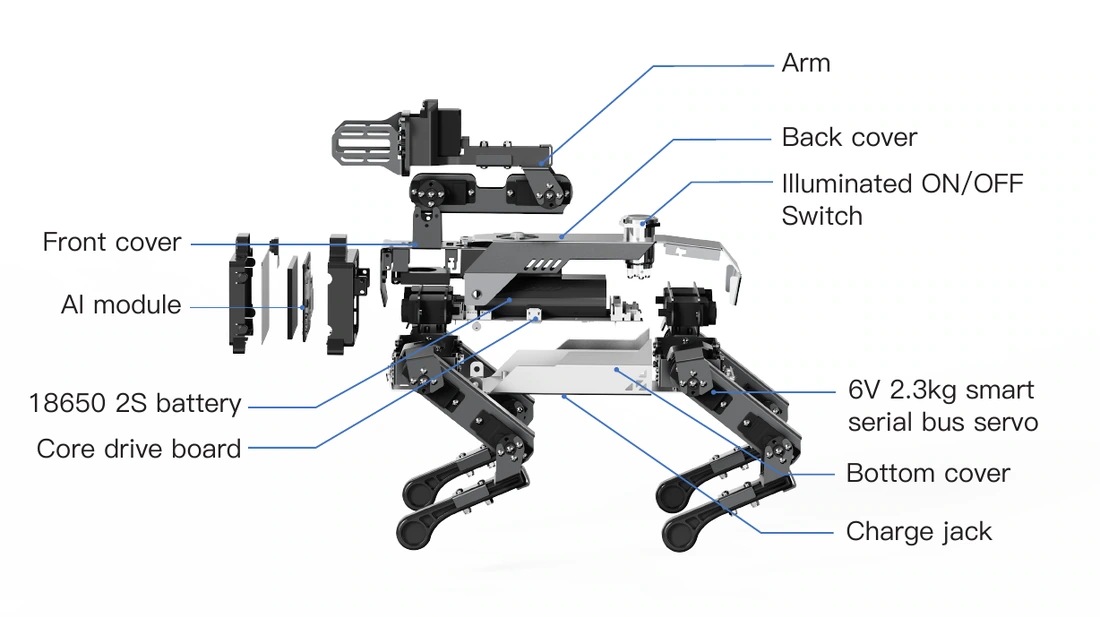
Product Introduction
2

Power on, power off, charging

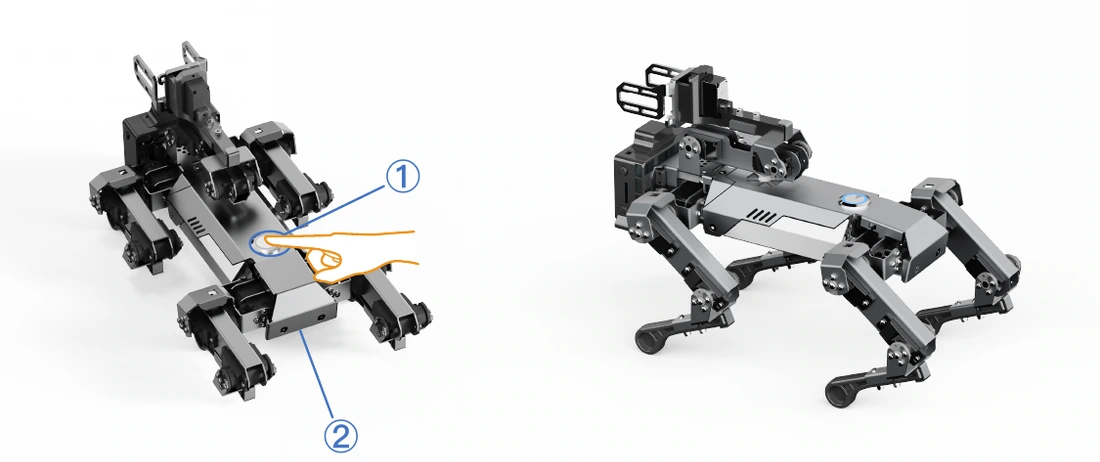
  1. Power on: Place the robot in a lying position to prevent joint jams, then press the power switch on its back. The ring light flashes rapidly and then stays on. The robot stands up and the arm opens and retracts to complete startup.
  2. Power off: Press the power switch on the back. The ring light flashes slowly while the robot lies down and retracts its arm. The light turns off when shutdown is complete.
  3. Charging: When the battery is low, the ring light flashes and the robot lies down. Connect the supplied Type-C cable to the charging port on the underside. A full charge takes about 2 hours. The mainboard power indicator is red while charging and green when fully charged.
Power on, power off, charging
3

Quick Network Setup

Create the following Wi-Fi network on your router or phone. The robot connects automatically after startup. See the official Wiki for other connection methods.

Open the official Wiki
SettingValue
Network name (SSID)XGO2
PasswordLuwuDynamics
4

LUWU OS Operation

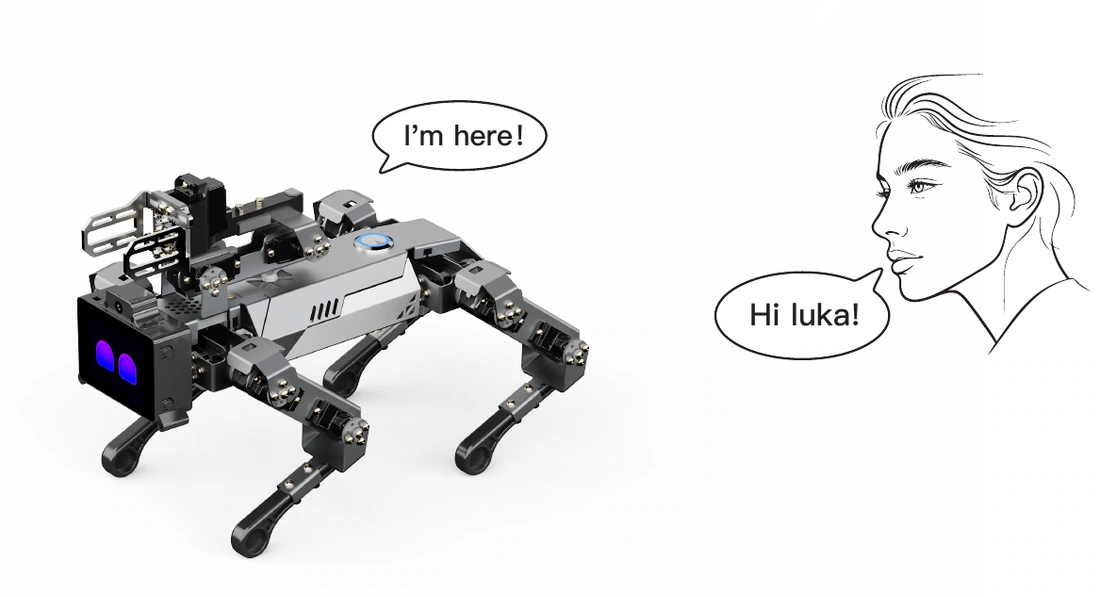
LUWU OS is a graphical system running on the Raspberry Pi CM5. Following operational prompts on the 2.0-inch screen, users can directly navigate Generative AI, vision tracking, and motion features using four physical buttons (A/B/C/D) for selection and confirmation, entirely free from PCs or phones.

LUWU OS Operation
5

Development Setup

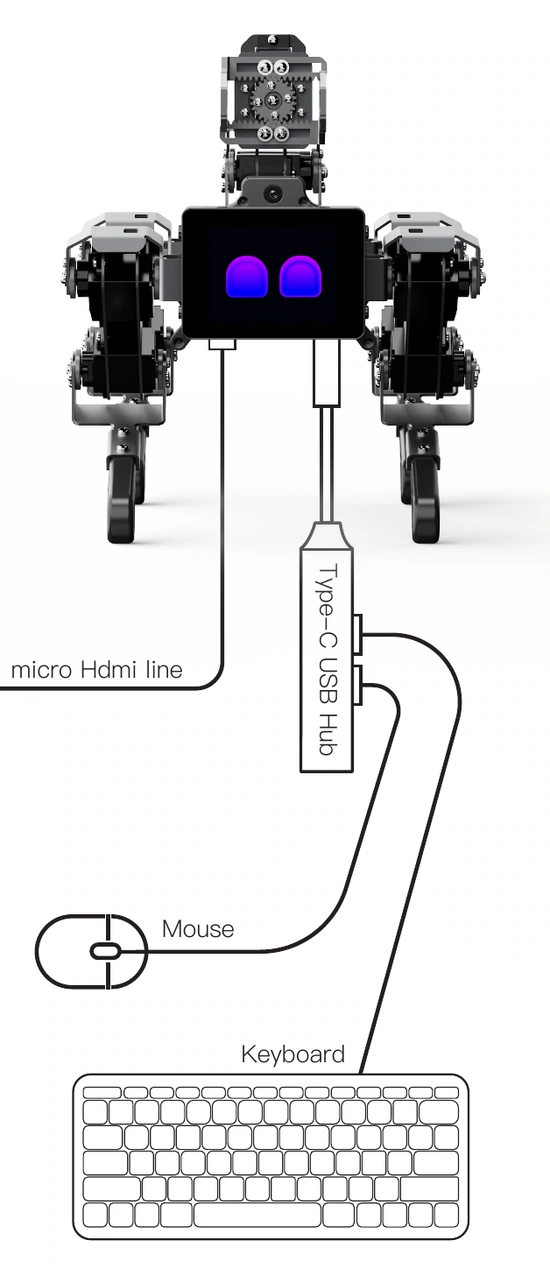
  1. Connect a display: Plug the supplied Micro HDMI cable into the port at the lower left of the robot’s screen, and connect the other end to a monitor.
  2. Connect a keyboard and mouse: Plug the supplied Type-C USB hub into the port at the lower right of the screen, then connect your keyboard and mouse to the hub.
  3. Remote development: Once the robot is online, connect from your PC using SSH. The default username and password are both luwu. Your PC and robot must be on the same network.
Development Setup
6

App Download & Remote Control

For iPhone users, search for 'XGO' in the App Store and download and install it. For Android users, search for 'XGO' in the Google Play App Store and install it. Or navigate to Settings → APP Download on the robot dog and scan the QR code to download the APK.

App Download & Remote Control
7

Initial Position Calibration

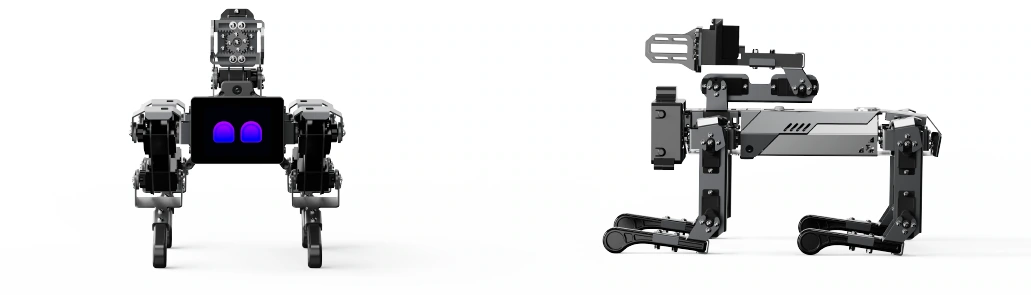
If the standing posture is abnormal and all four legs cannot touch the ground together, the initial joint positions may need recalibration. Read the instructions carefully and use the illustrated posture as a reference.

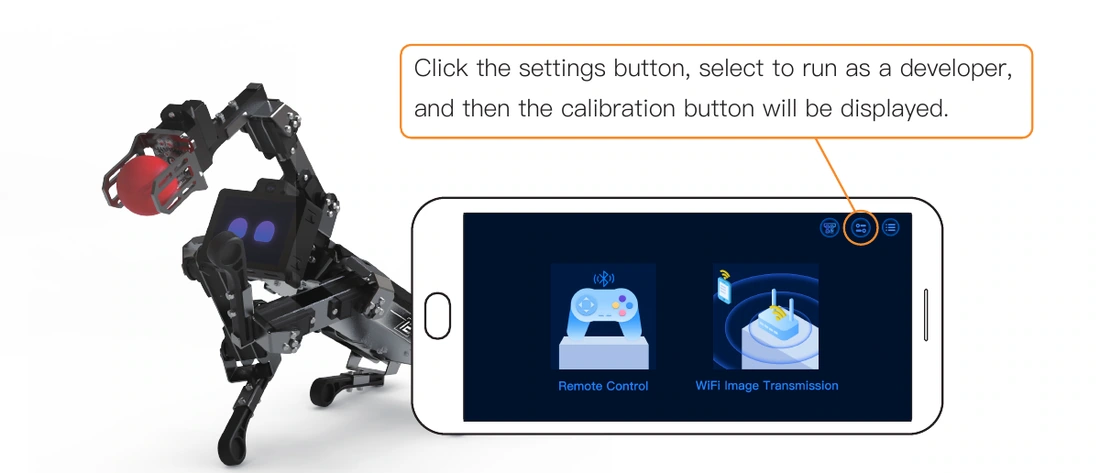
  1. Open Settings in the XGO app and choose to run as a developer. Return to the remote control screen and connect to the robot over Bluetooth.
  2. Open the calibration page and select “Calibrate”. The servos stop producing torque, allowing the joints to be moved.
  3. Match the illustrated posture: each shoulder is perpendicular to the body, each thigh is perpendicular to the ground, and each lower leg is perpendicular to its thigh. Alignment directly affects the operating posture.
  4. Select “Calibrated” and wait about 10 seconds for the robot to stand. If the posture is still severely misaligned after a correct calibration, contact after-sales support.
Notice: Caution: This operation is irreversible and the factory settings will be overwritten. Read this manual thoroughly and carefully before you attempt calibration.
Initial Position Calibration
8

Precautions

  1. Use a stable, level surface to prevent the robot from falling during movement or collisions.
  2. Check the battery before each use, charge it when low, and avoid prolonged use at a low battery level.
  3. Keep fingers clear of moving joints to avoid pinching.
  4. Servos may become hot during extended use. Continuous operation should not exceed 1 hour.
  5. Check regularly for loose screws and tighten them.
  6. Use the dedicated packaging for transport or storage, securing all four legs to prevent damage from movement and collisions.
9

Specifications

Model
XGO-lite3
Dimensions
250 × 145 × 170mm
Weight
610g
Battery
18650 standard 2500mAh 3C discharge
Material
Body- Aviation Aluminum / Legs-ABS
Controller
Raspberry Pi CM5+ESP32
Screen
2.0 inch IPS 320*240
Camera
five-mega-pixel OV5647
Speaker
8Ω 2W chamber speaker
Mic
dual MEMS digital microphones
Storage
32G SD card
Charging port
Type-C 5V
10

AI Intelligent Interaction

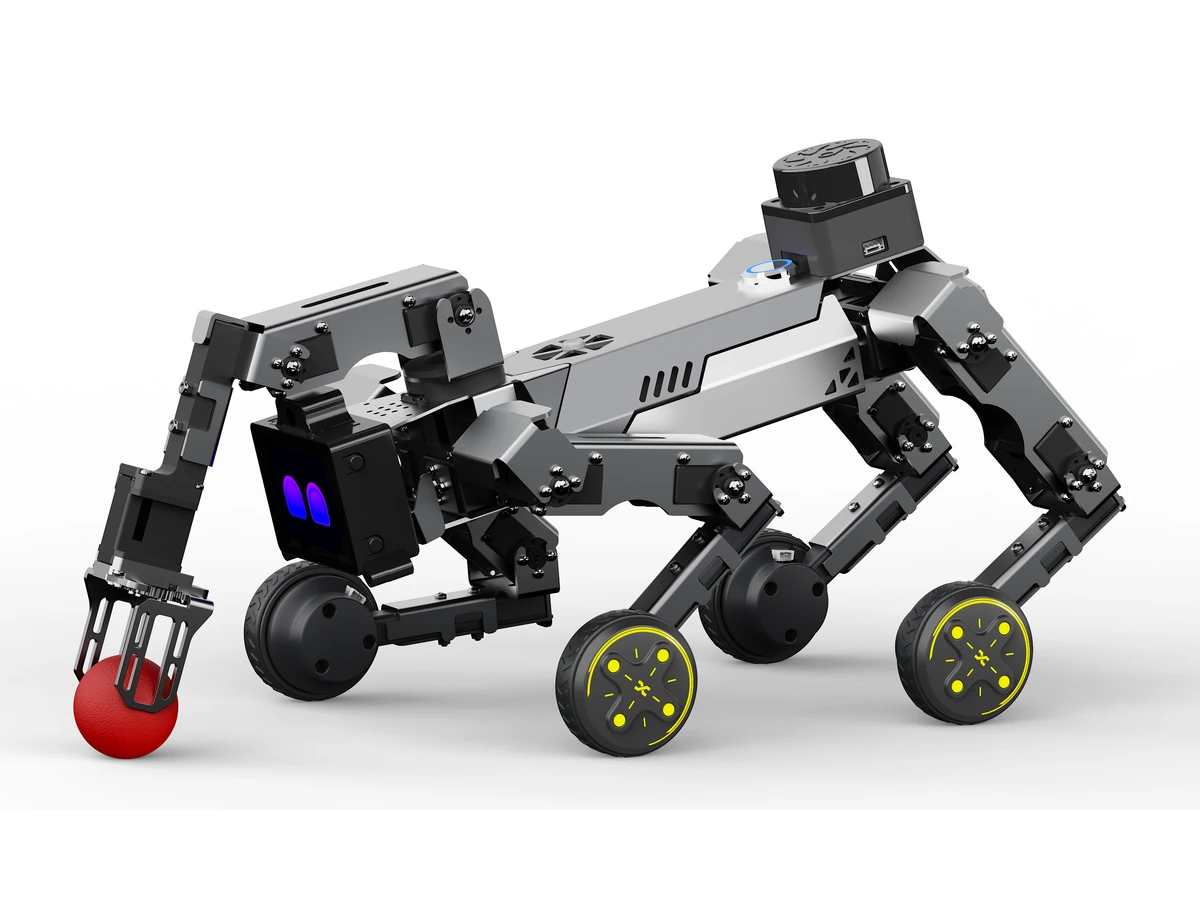
Face following Gesture recognition Wi-Fi Gamepad control LiDAR expansion AI voice interaction Hotspot mode Group performance AI vision interaction Video transmission Show mode
Notice: Technical Support: hello@xgorobot.com